
The swarm, attention and history
Arugula watches every pane and agent and tells you when one needs you: an agent is asking, a command failed, or a long job finished. This page covers how that works, notifications, the swarm, and searching past output.
What needs you
Section titled “What needs you”A pane wants you when it rings the bell, sends a terminal notification, shows an agent’s prompt waiting on you, or is told so by a hook. It gets a badge on its tab and pane and appears on the swarm’s rail and in the phone’s Needs you. A long command finishing while you’re elsewhere shows done.
Every pane that wants you says why, with a one-line headline, the command and its exit code:
- ask: an agent’s question or permission request;
- failed: a command that ran a few seconds and ended with an error (Rerun runs it again);
- exited: its program exited;
- input: a bell or a terminal notification;
- done: a long command or an agent’s turn finished.
Arugula groups similar requests (failures by machine, agent questions by project), so you can allow, deny, answer or dismiss a whole group at once. Dismissing on one screen clears it on every other. Dismiss is in a pane’s menu too, and Go to the next pane that needs you is in the command palette (Ctrl+Shift+L).
The bell in the top bar lists what needs you on every machine. When nothing does, it offers what would make things land there: Set up, which installs Arugula’s hooks in Claude Code’s settings so a terminal Claude’s questions come here (on your own machine, while they’re missing), and Notify this device, while notifications are off.
arugula attention --json # what wants you and whyarugula events -f --type attention # as it happens (NDJSON)Notifications
Section titled “Notifications”Push notifications reach you when a pane needs you, even with Arugula closed. Turn them on per browser or phone with Notify this device in the account menu (Notifications in the phone’s sheet); tapping a notification opens its pane. Each notification is titled with the reason, and an agent’s request can be answered from the notification’s buttons.
- A phone needs the page over HTTPS, and an iPhone needs it added to the Home Screen: see Phone.
- The machine’s owner is always notified. Anyone else the session is shared with chooses Notify me about its agents (this session) or Notify me about every agent here.
- The desktop app notifies natively.
The swarm
Section titled “The swarm”The swarm shows every pane on every machine you and your team can see, so
you can spot what’s busy and what’s stuck without opening each session.
Open it with Swarm beside the tabs (or go to /#swarm). Each pane is a
tile, colored by kind (shell, build, test, agent, server and so on) and lit
by activity, and you cluster the tiles by project (or folder, outside a git
repository), machine, kind, session or owner. Theme draws the same
panes as a city, a hive or a timeline: see Swarm themes.
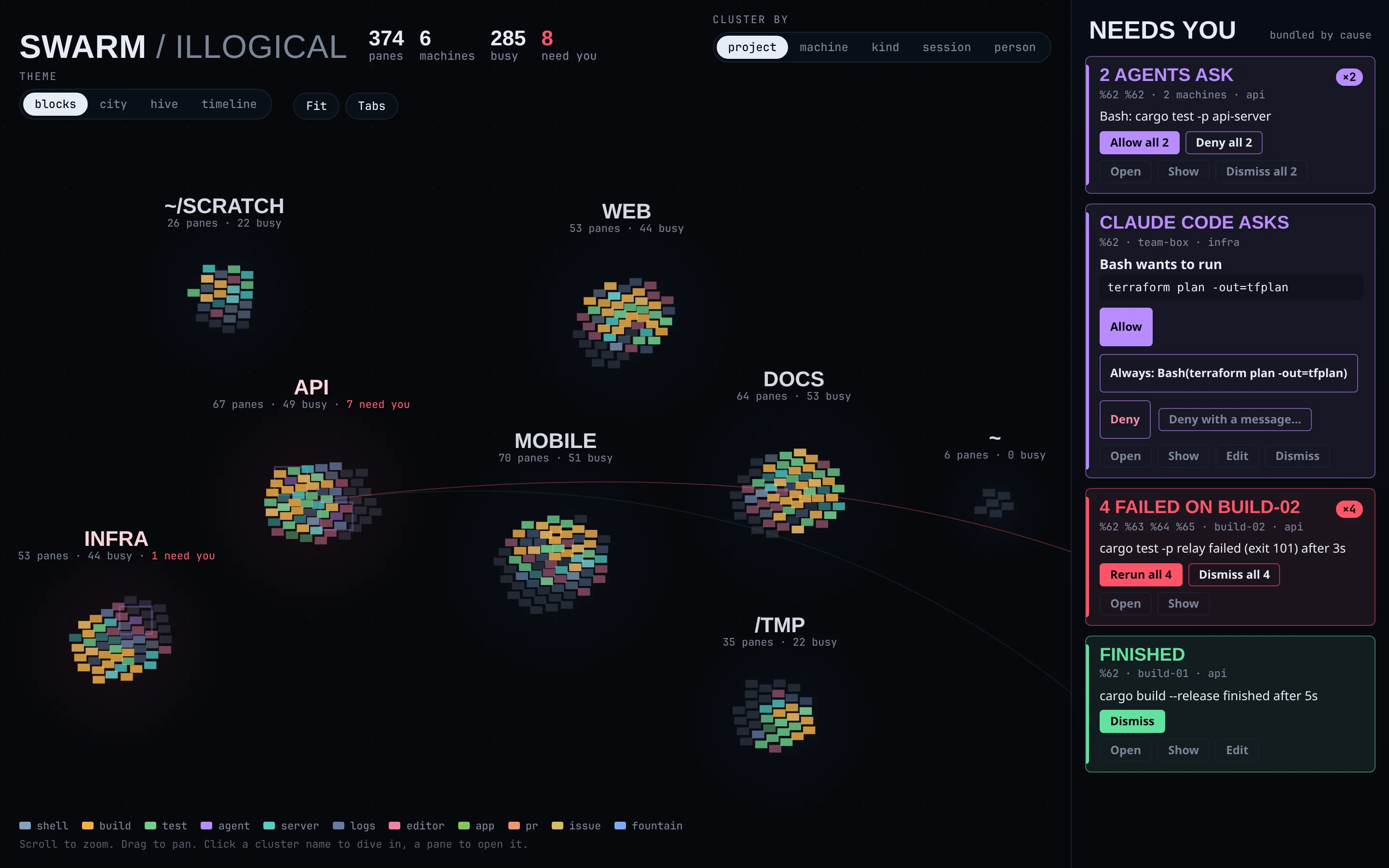
- The rail: what needs you lifts out to a rail of cards, grouped by cause (“3 failed on build-02”, “2 agents ask”). Allow, deny, answer or dismiss them all at once, or send an agent its next instruction. On a phone, the cards are a strip along the bottom.
- Hover over a tile to see its last lines; click it to open it. For an editor in the swarm, clicking follows its cursor.
- The swarm stays connected to every machine you can reach, receiving summaries only. A machine that goes away grays out with when it was last seen, and comes back by itself.
- Private panes never leave their owner’s view. Removing someone’s access or locking a team takes those panes off their screen within a second.
History
Section titled “History”Arugula keeps every command run in a pane, with its folder, exit code and who ran it, and keeps closed panes’ output for 7 days.
arugula history --failed --since 2h # commands that failed, newest firstarugula history --kind answer # who allowed or answered whatarugula history --cwd ~/app --match cargoarugula search 'panic|Traceback' --since 1d # the output of every panearugula log %3 --who # a pane's commands, and who typed in it over timearugula tail %3 --last-command # just the last command's outputarugula capture %3 --scrollback # what it shows (--ansi, --html)arugula export %3 -o session.cast # for asciinema play session.cast--kind is command, answer or agent. Agent blocks are covered too:
history lists an agent’s commands and turns, and search covers what
agents said and ran.
Which terminal notifications count
A pane wants you on the bell, or on a notification escape sequence (OSC 9, 777 or 99) from the program running in it.