
Blocks
Blocks put the things you’d normally switch windows for (a web page, a dev
server, VS Code, a diff) beside the terminal they belong to, in the same
tabs and splits, on the same machine. A terminal is one kind of block, and
so are agents and pull requests and issues. Every
block has an id like a pane’s (%7), shows in the swarm, can raise a card,
and comes back after a restart.
Web pages
Section titled “Web pages”To read docs or a dashboard beside your work, choose Open beside › Open a
web page… in a pane’s menu, or + Pane › Web page, or run arugula open example.com (--split %3 puts it beside
pane %3). Sites that don’t allow embedding show a card with open in new
tab.
Browser blocks on ports
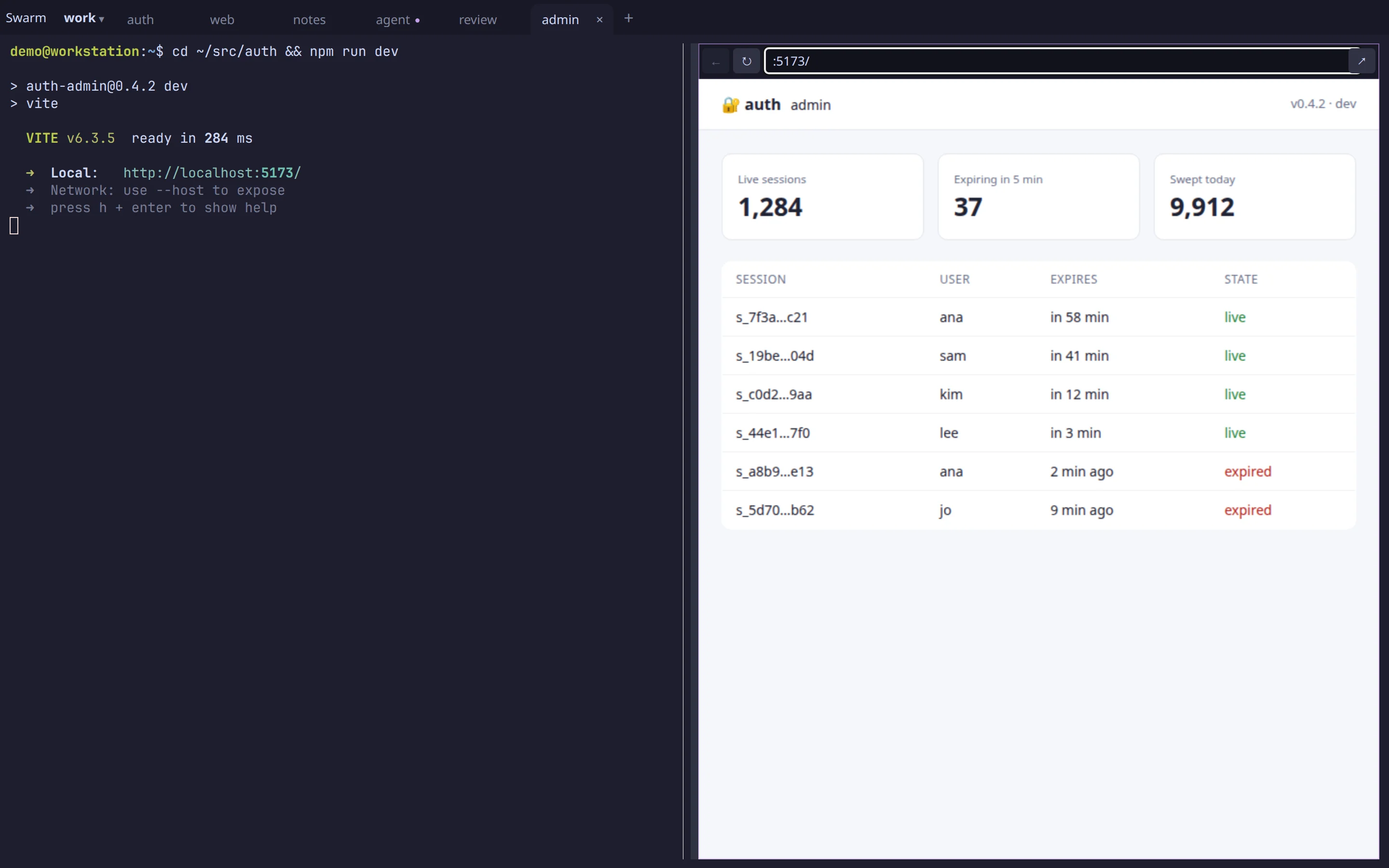
Section titled “Browser blocks on ports”A browser block on a port shows your dev server’s page beside the terminal
that runs it. Run npm run dev in a pane, then choose Open beside › Open a
port… in its menu, or + Pane › Port (Open port in the phone’s sheet), or run arugula open --split right :5173; the page opens with hot reload working. A block opened from a pane
shows the port on that pane’s machine. When the server stops, the block says
so, and shows the page again when the server is back.
For the browser on this computer (no domain or certificates needed):
arugulad install -- --block-listen 127.0.0.1:7701Blocks then open at http://b-{id}-{key}.localhost:7701; browsers resolve
*.localhost by themselves, and each name carries a random key only the app
and the CLI know.
For your phone and other machines on your tailnet:
-
Use a domain you manage in Cloudflare. Add a DNS-only (gray cloud)
Arecord for*.arugula.example.compointing at the machine’s tailnet address (tailscale ip -4). Only your tailnet can reach that address. -
Create a Cloudflare API token with Zone › Zone › Read and Zone › DNS › Edit on that zone, and save it to a file. The daemon uses it to get a wildcard certificate from Let’s Encrypt, and renews it by itself.
-
Pick a free port on the tailnet address (443 is usually taken by
tailscale serve), and install with:Terminal window arugulad install -- --block-listen 100.x.y.z:7443 \--block-domain arugula.example.com \--block-acme-cloudflare-token-file ~/.config/arugula/cloudflare-token
--block-acme-directory staging uses Let’s Encrypt’s test CA while you try
it out; --block-cert and --block-key serve a certificate you renew
yourself. Only the machine’s owner, on the tailnet, gets in.
Blocks on ports aren’t relayed through Arugula control: the browser showing the block has to reach the listener itself. How the isolation works is in Security and privacy.
Editor blocks
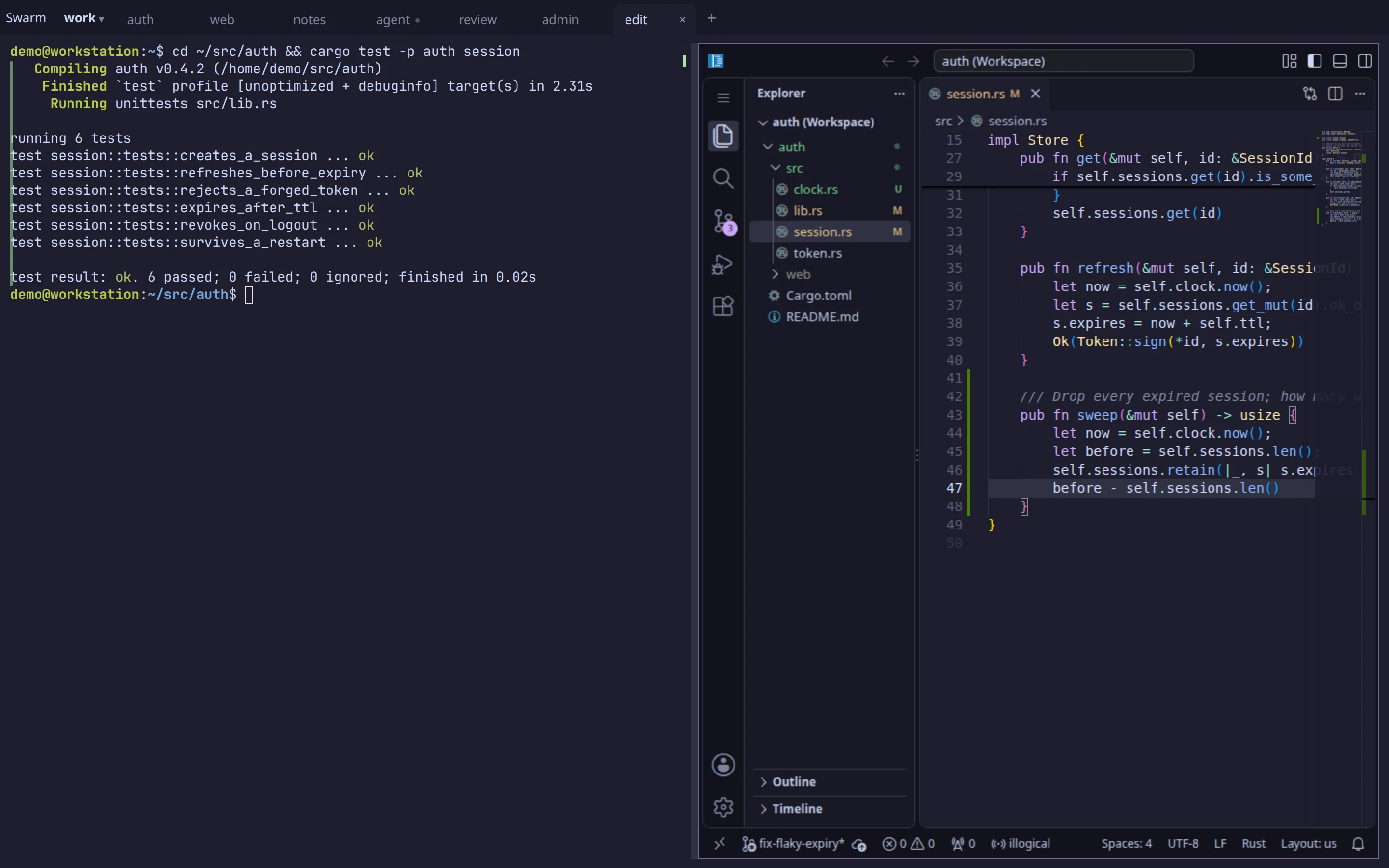
Section titled “Editor blocks”Editor blocks run VS Code (code-server)
on a pane’s machine, in its folder. Open one with Open beside › Open in editor in a
pane’s menu, + Pane › Editor, or a tile’s right-click menu in the swarm, or with arugula edit [PATH[:LINE]]. A folder opens as itself; a file opens in its project
(its git repository), at its line.
Editor blocks are served like browser blocks on ports, so they need the same
--block-listen setup above; until then, Open in editor tells you how.
Only the machine’s owner can open one. They aren’t available on Windows.
- One server runs per machine, shared by every editor block there. It
starts when a block needs it and stops after 15 minutes with nothing open
(
--editor-idle SECONDS, at least 60); it starts again when someone looks. - The first time an editor opens, Arugula downloads the code-server release
it pins (about 230 MB) into
~/.cache/arugula/code-server, and checks it against its SHA-256.--code-server PATHruns another one instead. - Settings, extensions (from Open VSX) and state are
kept in
editor/in the daemon’s state directory, so they survive restarts. New settings start with Arugula’s colors and VS Code’s AI features off. The server’s log iseditor/code-server.logthere. - After a daemon restart, the window reconnects to the same session; after a reboot, the block opens the file it had.
Changes: diff and file blocks
Section titled “Changes: diff and file blocks”Use diff and file blocks to check what an agent changed, from any device. Choose Open beside › Changes in a pane’s menu, Changes in a tab’s menu, or + Pane › Changes (or Changes in the phone’s sheet, or on a swarm tile) to open a diff block beside the pane, for its git repository on its machine. It lists the changed files with +/− first (staged, unstaged and untracked, against HEAD). Tap a file to see its hunks; tap a line to open a file block there, scrolled to that line and marked.
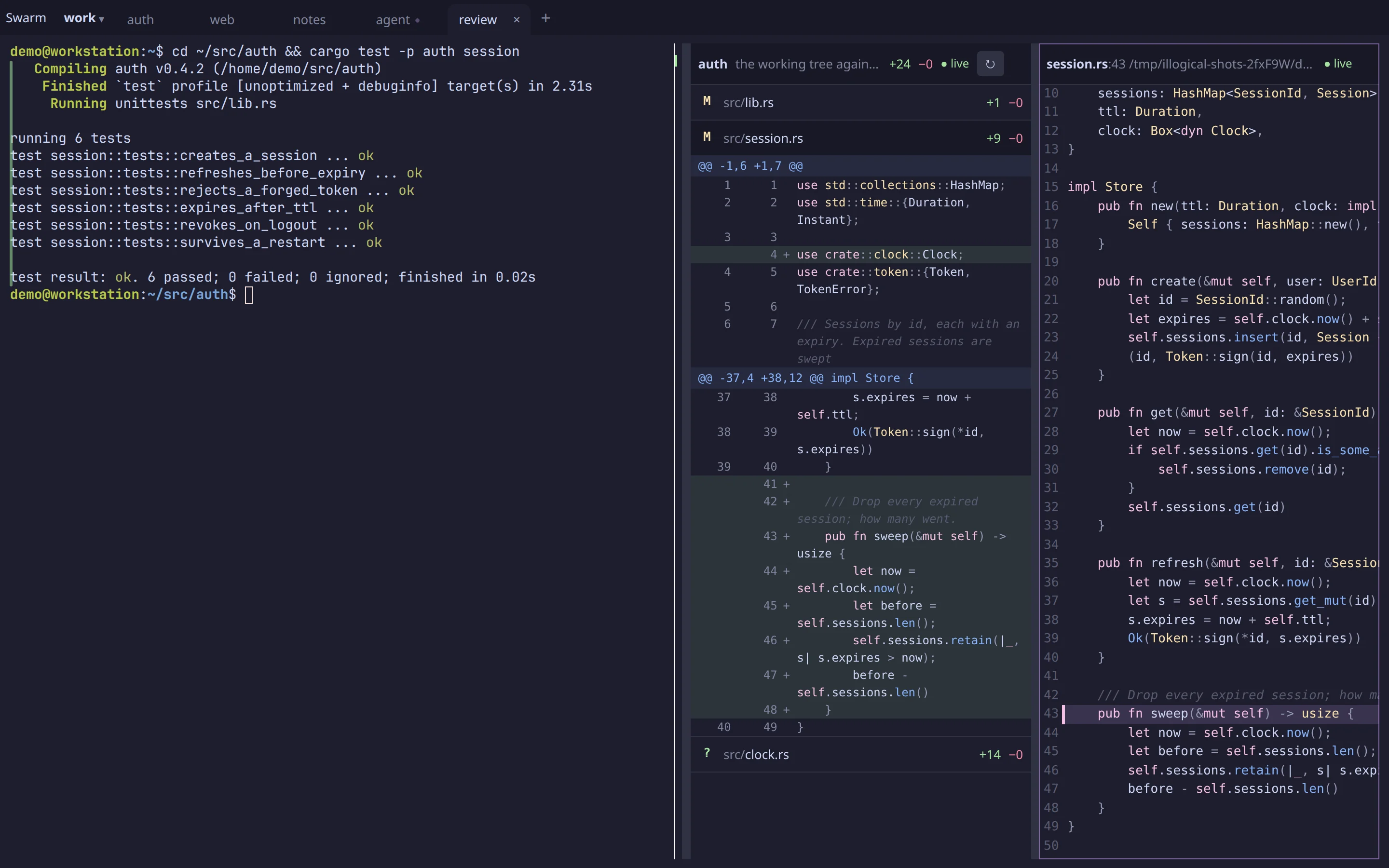
arugula diff # what changed here; prints it, then the filesarugula diff %4 HEAD~3 HEAD # in %4's repository, on its machine: a range (one rev: against it)arugula view %4:src/main.rs:42 # a file block at line 42, followed liveOpen file on an agent’s tool call opens the file it touched.
- Live while you look. Both follow the files as they change, but only while someone has them on screen; they catch up when someone looks again. A file block keeps its mark on the same line of text when lines above it change.
- Read-only. Nothing in them edits or reverts. People you share the session with see the same blocks; to change which files or revisions are shown, you need to drive.
- Limits. A file’s diff over 256 KB shows as too big (open the file
instead), a binary file shows as binary, and a file block shows the first
1 MiB.
gitruns on the block’s machine and never takes the repository’s lock.
Your editor in the swarm
Section titled “Your editor in the swarm”VS Code or Cursor on any of your machines can appear in the swarm beside your panes: a tile in its project, with its open file, its errors and unsaved files, and the lines around its cursor.
- Joining:
arugula editors installadds Arugula’s extension to VS Code (--with cursorfor Cursor; orarugula editors vsix -o arugula.vsixto install it by hand). Then run Arugula: Show this workspace in the swarm from the editor’s command palette. Each folder joins only when you ask, and that’s remembered; Arugula: Take this workspace out of the swarm removes it at once. - Where: the editor talks to the daemon on the machine its files are on. Under Remote-SSH the extension runs on the remote machine, so it’s that machine’s daemon.
- Following: click its tile (or Follow on a card) for a read-only view
of the file it has open that follows its cursor, with its selection,
errors and the debugger’s line. The editor sends this only while someone
follows (its status bar says how many). From the view: Continue a paused
debugger, Open here (the same file and line in VS Code or Cursor on this
computer, over SSH, or in an editor block), or Ask Claude (puts
@file#L3-5in Claude Code’s prompt in a terminal on that machine). - Cards: the debugger stopping (Continue), errors a save brought, and an open merge conflict show on the rail.
- Who sees it: only you, unless the editor is on a team machine, where members see it by their role. Following needs a role that watches; Continue needs one that drives.
arugula editors lists the editors that joined, and editor blocks.
Next steps
Section titled “Next steps”- Pull requests and issues: forge blocks beside the work on them.
- Agents: agent blocks.
- CLI: every block command,
arugula describeandarugula call.