
Panes and sessions
Arugula arranges your terminals in sessions, tabs and panes, and the daemon keeps all of it. A session is a set of tabs; a tab is split into panes; a pane holds a terminal or another kind of block. Every window and your phone show the same layout, live. New sessions get generated names (“drifting cedar”); Rename session in the session menu changes one.
The workspace
Section titled “The workspace”On a computer, the web page and the desktop app draw one workspace around your panes. A phone has its own header and sheet: see Phone.
- The rail, down the left: Arugula’s mark (this machine’s sessions at a glance), Sessions (shows or hides the sidebar), Panes (back to the session’s last tab and pane), Swarm (every pane on every machine), Chat, Agents and Docs where you have them, and Settings.
- The session sidebar: the machine’s sessions, grouped into Needs you,
Working and Idle, with their tab and pane counts and their repository
and branch. Search filters it,
+makes a session, and each row’s…opens the session menu. - The header says where you are: the machine and how it’s reached (Direct, Relayed, Reconnecting or Offline), the session and the tab. Then command search, the bell (what needs you, on every machine), Share, who else is here, and your account.
- The pane toolbar, under the tabs: the pane count (a switcher), the layouts Columns, Grid and Main + stack, Focus (one pane fills the tab; again to restore it), and + Pane. Layouts and focus belong to the machine, so everyone sees the same.
- + Pane (Ctrl+Shift+E) adds a Shell, Agent, Chat, Editor, Changes, Port, Pull request, Issue, Web page or Claude Code conversation, on the machine and in the directory you pick, to the right or below. It previews the split first; an agent, a pull request, an issue or a conversation then asks which.
- Each pane’s header: its number (the Ctrl+Shift+digit one), what it is,
its status, where it runs, its directory and branch. Click it to type
there, drag it to move the pane, double-click to focus it,
…for its menu. - The activity drawer, under the panes, keeps what happened in the session: commands and how they ended, agents’ turns and answers, and panes opening, closing and exiting. Click a row to go to its pane. The footer shows the machine, the focused pane’s repository and branch, agents running and what needs input.
While the connection is down, the workspace says so: it shows what it last heard and turns off what would change something, saying why on the button. Appearance…, under This device in the account menu, picks the palette.
Using the mouse
Section titled “Using the mouse”Everything in Arugula is a click, a drag or a right-click away; there’s no prefix key to learn.
- Right-click a pane, a tab, the session’s name or the
+button to see everything you can do with it. - Drag a tab, or a pane by its grip, onto another pane’s edge to split it there. Drag a divider to resize. Double-click a tab to rename it.
- The command palette (Ctrl+Shift+P, or ⌘⇧P on a Mac) lists every action the menus offer for the active pane, its tab and its session, plus jumps to tabs and panes and Go to the next pane that needs you (Ctrl+Shift+L). Type to filter; recent picks come first. On a phone, it’s Commands in the sheet.
- Go to directory… (Ctrl+Shift+G) lets you browse folders on the pane’s
machine. Open it from Move › Go to directory… in a pane’s menu too, or
from New tab in a directory… on the
+button’s menu. It starts where the pane is, lists folders you used lately first, and filters as you type (type/or~to go to a path; Backspace goes up). Then choose New pane here, New tab here, or cd there, which typescdinto the shell only while it waits at its prompt. - A pane’s menu (right-click it, or
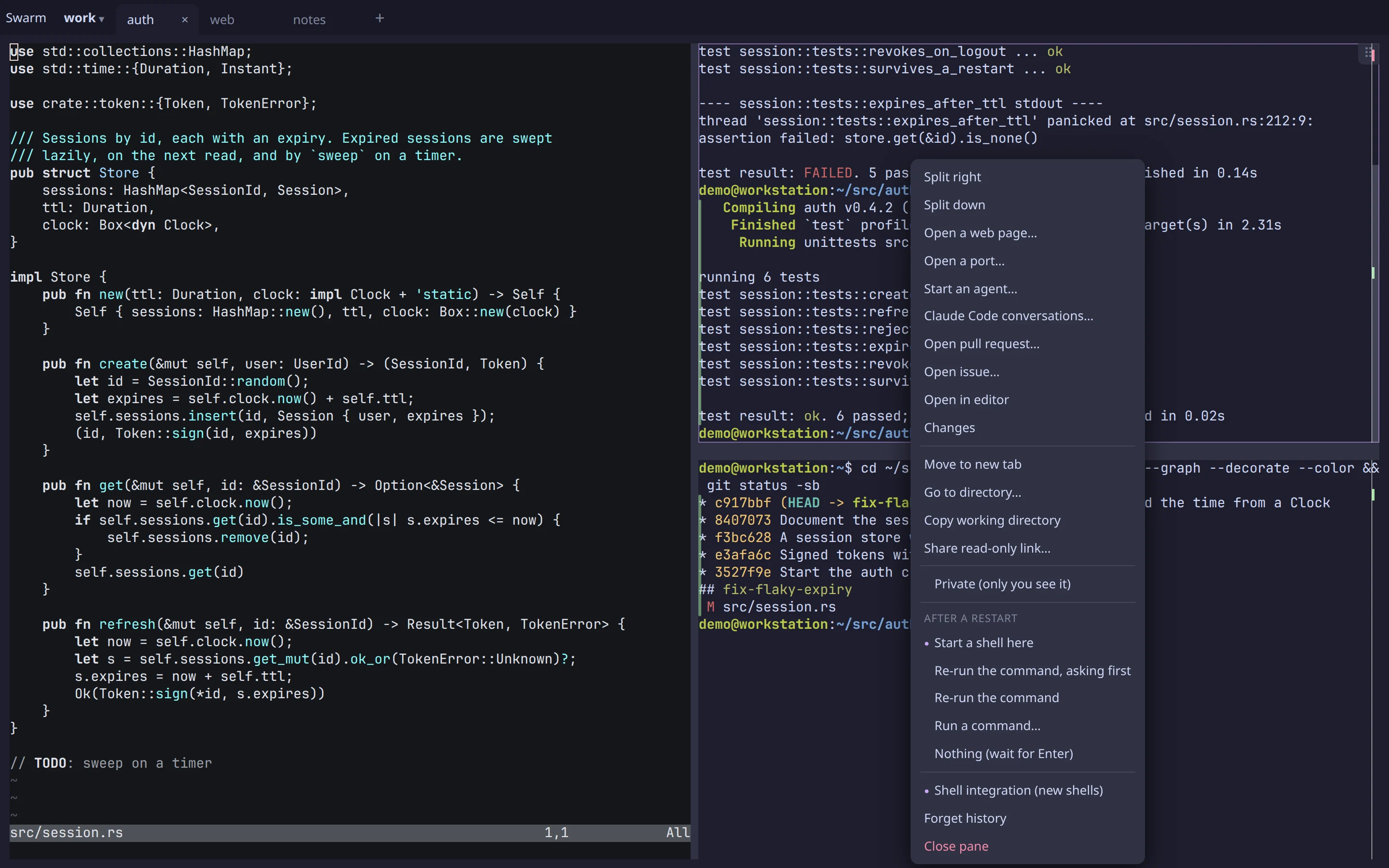
…on its header) has Copy, Paste, Select all and Clear scrollback, then Split right, Split down, Copy working directory, Attach file… and Close pane. The rest is in submenus: Open beside (an agent, a web page, a port, a pull request, an issue, the editor, changes, Claude Code conversations), Move, Share (links, ssh invites, who drives), Thread and Pane settings (what it does after a restart, shell integration, Forget history). The command palette lists the same actions. - The machine menu (the host menu, under the machine’s name) holds the machine’s settings, for its owner: Permission rules…, Usage and crash reports…, Guest SSH access… and Developer settings…, which has a switch for each feature that isn’t ready for everyone yet, on every machine. Where there’s no machine menu, they’re under This machine in the account menu.
What survives a restart
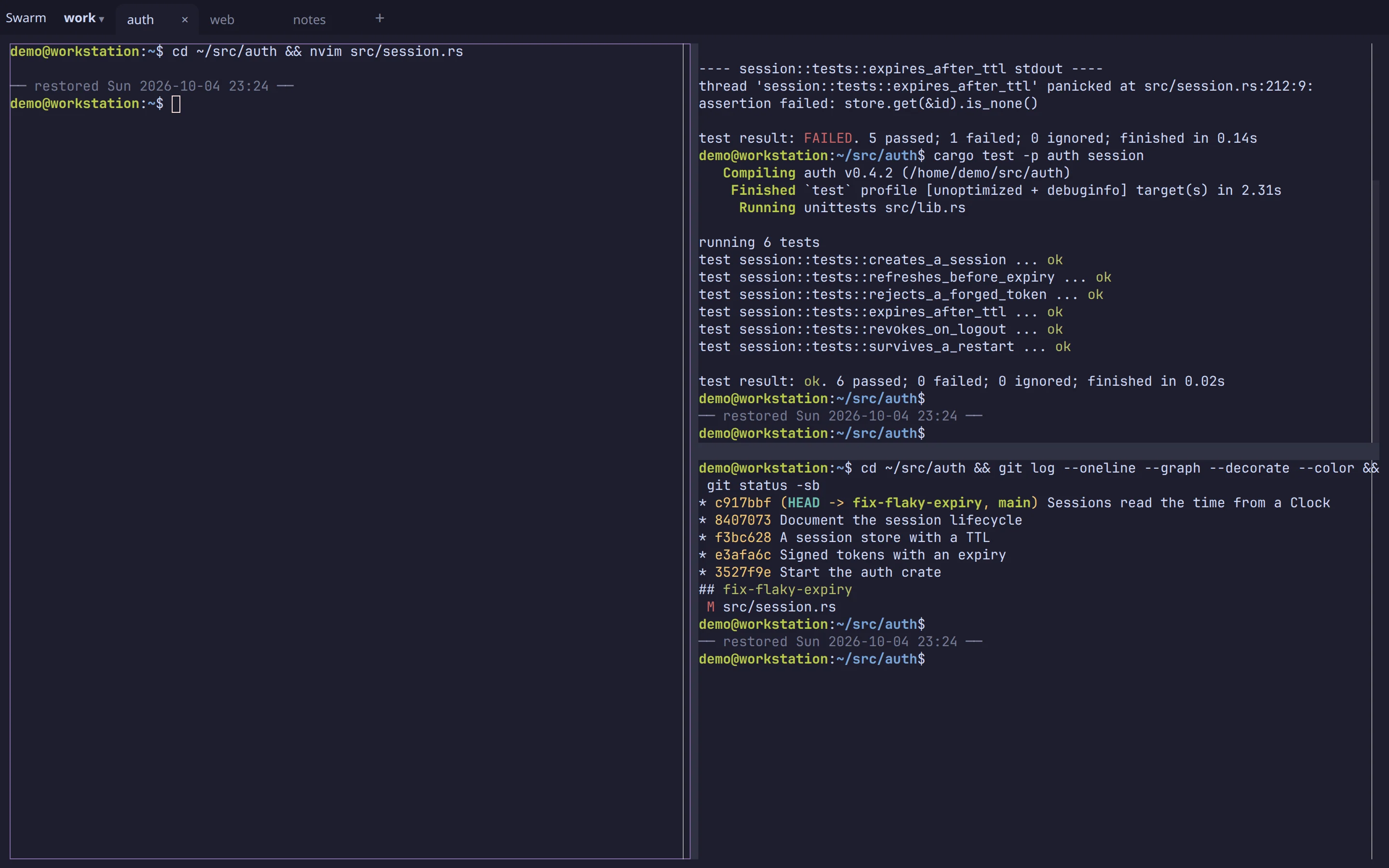
Section titled “What survives a restart”The layout and scrollback survive anything. Running programs survive a daemon restart, update or crash; after a reboot, or after the daemon is stopped for good, each pane starts again as its After a restart setting says.
- Every pane’s output goes to a log as it happens, and the layout is saved on every change.
- When the daemon restarts or updates, programs keep running: vim keeps its screen, a build keeps building, and open windows reconnect by themselves.
- Stopping the daemon (
systemctl --user stop arugulad, or Stop… in the desktop app) ends the panes’ programs, as a reboot does. - After a reboot, each pane comes back with its scrollback, marked
── restored {time} ──, and does what its After a restart setting (in its menu’s Pane settings) says:- Start a shell here (the default): a shell in its last directory;
- Re-run {command}, asking first, or Re-run {command} without asking;
- Run a command… that you choose;
- Resume {conversation}: Claude Code’s conversation, picked up with
claude --resume(the default for a pane running Claude Code); - Nothing (wait for Enter).
- A shell killed by a signal (out of memory,
kill -9) leaves its pane and scrollback in place and offers a new shell. Only an ordinaryexitcloses a pane.
Commands in a pane
Section titled “Commands in a pane”Arugula knows where each command in a shell starts and ends, so you can select, copy and rerun them. Shells get this shell integration automatically, with no changes to your dotfiles: bash, zsh, fish and PowerShell report each command, its exit code and its directory. Shell integration (new shells), under Pane settings in a pane’s menu, turns it off for that pane.
- Each finished command gets a mark in the gutter, green or red. Click it to select the output; right-click it for Copy output, Copy command or Run again.
- A command that failed can be run again with Rerun: on the tab’s ✗ badge,
in the phone’s Needs you, on a swarm card or on the notification, or with
arugula rerun %N. Arugula types it in only once the shell is idle at its prompt. - Arugula labels each pane with what it’s running (shell, build, test,
agent, server, logs or editor), its git project and how busy it is. The
label comes from the actual program, so an alias for
claudestill counts as an agent.arugula ls --jsonshows the labels, and the swarm groups by them.
Files and images into a pane
Section titled “Files and images into a pane”You can hand a file to whatever runs in a pane, even on another machine.
Paste or drop the file onto the pane, choose Attach file… in its menu (⌘U
in the Mac app; 📎 in the phone’s key bar), or run arugula upload %N FILE.
The file is copied to the pane’s machine and its path is pasted in, so
Claude Code running in that pane receives an image as an image.
- Big images are scaled down first, and HEIC photos become JPEG.
- The path is pasted only into a shell or an agent; for anything else, the page offers Copy and Paste anyway.
- Files are kept privately for a day, and deleted when the pane closes. Each file can be up to 20 MB, and each machine keeps up to 200 MB of them.
In an agent block, a file goes with your next message instead.
History
Section titled “History”Arugula keeps what ran in every pane, so you can find it later.
arugula historyandarugula searchlook across every pane’s commands and output, including panes closed in the last 7 days. See Attention and history.- Each pane keeps up to 256 MB of history, stored privately in the state directory.
- Pane settings › Forget history in a pane’s menu deletes the pane’s saved output and clears its screen.
None of these takes a key a terminal program would get on its own: each takes it only when it can act, and otherwise the key goes to the pane.
| Keys | What they do |
|---|---|
| Ctrl+Shift+P (⌘⇧P on a Mac) | Command search: every command, and this machine’s sessions, tabs and panes |
| Ctrl+Shift+G | Go to a directory |
| Ctrl+Shift+1–9 | Go to pane 1–9 of this tab (the numbers on the pane headers) |
| Ctrl+Shift+Enter | Focus the active pane, or restore the layout |
| Ctrl+Shift+E | + Pane |
| Ctrl+Shift+L | Go to the next pane that needs you |
| Ctrl+Alt+Shift+arrows | Grow (→ ↓) or shrink (← ↑) the active pane (GNOME keeps these for itself) |
| Ctrl+Shift+C, Ctrl+Shift+V | Copy and paste in a terminal |
| Escape | Close the drawer, dialog or menu that’s open |
| ⌘W, ⌘T, ⌘N, ⌘U | In the desktop app on a Mac: close the pane, new tab, new window, attach files |
Getting started and What’s new
Section titled “Getting started and What’s new”Getting started opens by itself the first time: once per account on control’s page, once per browser on a machine’s own page. It has a step each for your phone, Arugula control (Cloud) and agents, and ends with Things to try: buttons that each do one thing here and now (Open the swarm, Start an agent, Open a port, Open a pull request, Get push, Open command search), each marked ✓ once you’ve used it, and links back to any step you skipped. Once the machine is in your account, the Cloud step offers Make a team and Share a session. Open it again from the account menu, or the ☰ sheet on a phone.
What’s new opens by itself once after an update: a small panel under the top bar, not a dialog, with the headlines of every release since the last one you saw. A headline with Try it does the thing (opens the page, runs the command), and each release links its full notes. It leaves out what you can’t use there. It’s remembered like hints (per account on control’s page), so it doesn’t open again on your phone. What’s new in the account menu, or on the update chip, opens it any time. On your first visit, only Getting started opens.
Arugula mentions a feature once, when something you’re doing makes it useful, and never on a timer or as a tour. A hint is a chip in a pane’s header or a toast, with one action:
| When | It says | Action |
|---|---|---|
| A program in a pane starts listening on a port | :5173 is listening |
Open beside: a browser block on it, next to the pane |
| A pane prints a pull request’s or an issue’s link | Click opens it here; Shift-click opens your browser | Open it |
| You paste a file’s path, or drag files over a pane | Attach file puts it on the pane’s machine | Attach file… |
You type cd in a fresh pane |
Ctrl+Shift+G goes to a directory | Go to directory |
| Panes come back after a restart | Re-run, or claude --continue, when this machine restarts |
After a restart… (the pane’s restart setting) |
| The first Doc opens | Kept on the Docs page; ask any agent for a Doc | Go to Docs |
| Someone else joins the session | Click their avatar to follow them, or use Pair mode to type together | Follow |
| Something needed you while this device couldn’t say so | Get these on this device, or your phone | Notify this device |
| You make a team, or its second member joins | Invite with a link; turn on chat for this team | Teams… |
| There are Claude Code conversations on this machine, none open | Pick one up here | Claude Code conversations… |
- One hint shows at a time, and none while you’re typing.
- A hint counts as seen once it’s shown, whether or not you use it, and × closes it. A hint that shows in a pane’s header waits for a computer, since the phone has none.
- On control’s page, Arugula remembers which hints you’ve seen per account, so a hint seen on your laptop doesn’t come back on your phone or the desktop app. On a machine’s own page, it remembers per browser.
- Tips, under This device in the account menu (and the rail’s Settings), turns them off.