
Phone
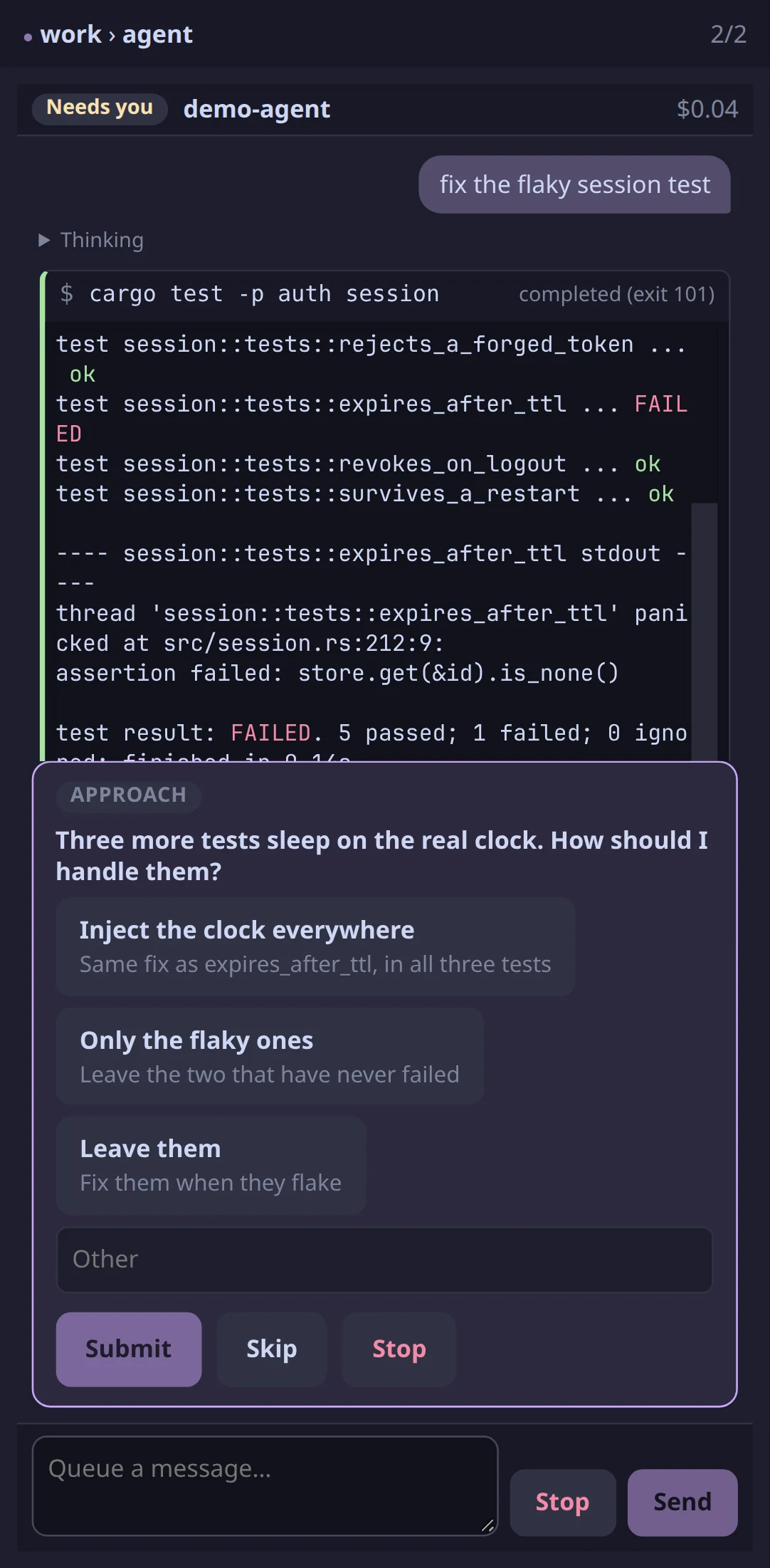
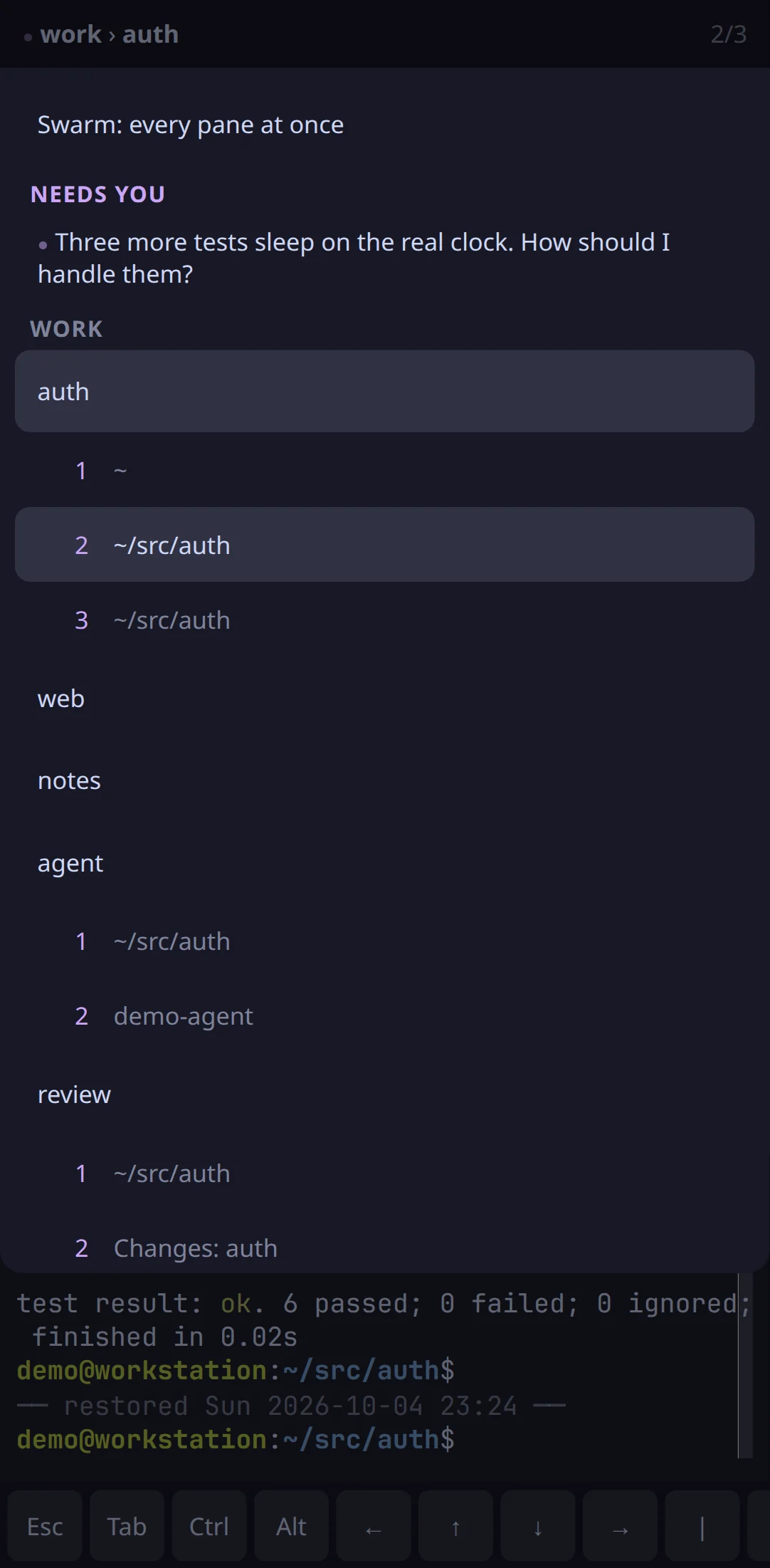
Your phone shows the same live sessions as your computer, laid out for a small screen: one pane at a time, a sheet to move around, and a bar of the keys a phone keyboard lacks. When an agent needs you, your phone gets a notification you can answer.
Connect your phone through Arugula control
Section titled “Connect your phone through Arugula control”Arugula control reaches your machines from your phone with no VPN to set up. If the machine isn’t on your account yet, add it first.
- On a computer signed in to Arugula control, choose Add a phone or browser… in the account menu of control’s page (or the signed-in desktop app). It shows control’s address as a QR code and a link.
- Open that address on your phone and sign in. The phone shows a fingerprint and waits.
- Your other devices ask New device? with the same fingerprint. Check that it matches, then approve it.
Connect your phone over Tailscale
Section titled “Connect your phone over Tailscale”If you use Tailscale, you can serve the machine’s page on your tailnet (your Tailscale network) instead.
-
The first time, turn on MagicDNS and HTTPS certificates in the tailnet’s DNS settings, or the next command fails. On Linux, also let yourself run it without sudo:
sudo tailscale set --operator=$USER. On macOS, Tailscale’s CLI may not be on yourPATH: it’s/Applications/Tailscale.app/Contents/MacOS/Tailscale. -
On the machine, run:
Terminal window tailscale serve --bg --https=443 http://127.0.0.1:7681 -
On your phone, open
https://{machine}.{tailnet}.ts.net.tailscale serve statusprints the address, and so do the Phone step of Getting started and the install script.
Only the machine’s Tailscale owner gets in. If the node is owned by another
login (or is tagged), install with arugulad install -- --owner you@example.com. To let other people in, see
Sharing.
Notifications
Section titled “Notifications”Push notifications need the page over HTTPS, which both ways above give you.
- On an iPhone, add the page to your Home Screen (Share › Add to Home Screen) and open it from there: iPhones only notify from a page added this way.
- Open the sheet (☰), and under Notifications turn on Notify this device. A test notification arrives right away.
A notification opens its pane, and an agent’s request can be answered from
its buttons. One that isn’t asking you to allow, answer or rerun something
(a finished command, say) also has Share, which opens the pane with its
session’s share picker. On plain http:// the sheet says notifications need HTTPS and
leads to Getting started. Which agents notify you is on
The swarm, attention and history.
Getting around
Section titled “Getting around”The ☰ button at the top left opens the sheet (it shows ● instead when something needs you). The sheet has:
- Needs you: every pane that wants you, with Rerun for a failed command and Approve for a review asked of you;
- New tab, New agent, Share session… (the session menu’s picker: a person, or everyone in a team, who watches or drives; see Sharing), Go to directory, Split pane, Swarm, Commands (the command palette) and Conversations (Claude Code’s);
- Sessions: every session, its tabs and their panes;
- Open: Pull request, Issue, Changes and Open port;
- Notifications, New session, Getting started, and closing a pane or a tab.
In the swarm (Swarm in the sheet), the cards are a strip along the bottom of the screen. Share on a card opens its pane with the share picker for its session, to bring someone in.
The key bar above the keyboard has Esc, Tab, Ctrl, Alt, the arrows, |,
~, / and -, and 📎 to attach a photo or a file to the pane
(Files and images into a pane). Ctrl
and Alt are toggles: tap one, then the key.
Lend this device to agents
Section titled “Lend this device to agents”Agents on your machines can use your phone’s camera, location, microphone
or clipboard, or ask you a question directly, if you let them. Turn on
Lend this device to agents in Sign-in and account… on control’s page.
You allow or deny each request on the phone while the page is open; if it
isn’t open, the agent’s request wakes it with a notification. A photo
reaches the agent as a file on its machine. Agents call this through MCP’s
device_call (MCP tools).
Next steps
Section titled “Next steps”- The swarm, attention and history: what shows up in Needs you.
- Agents: answering agents from anywhere.
- Arugula control: devices, machines and your account.